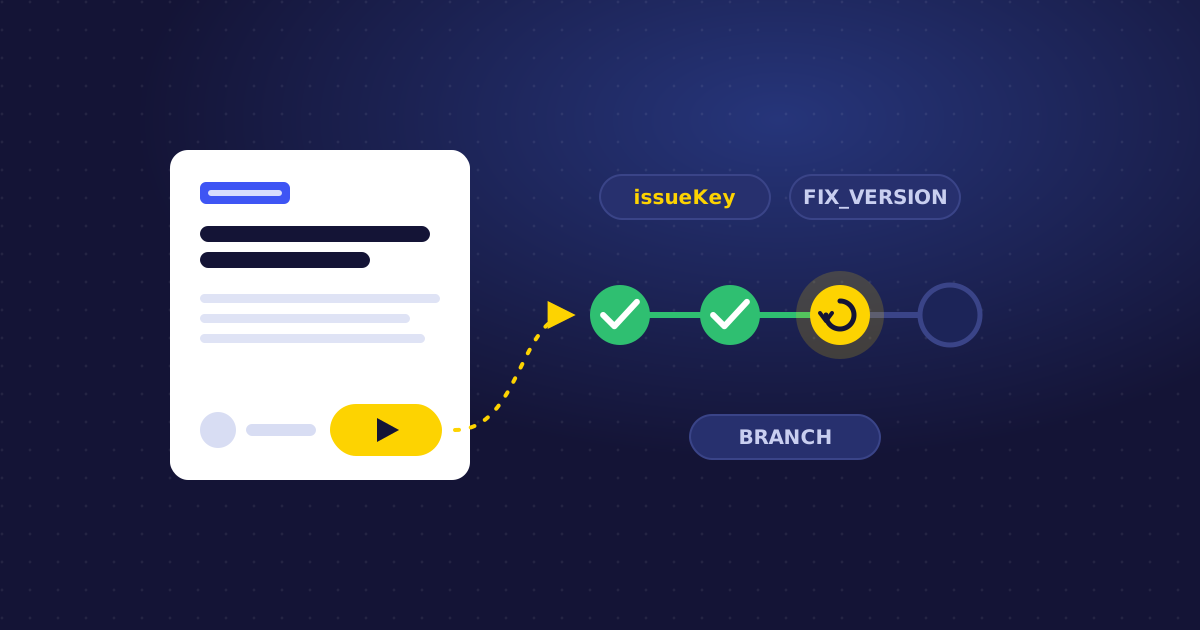
Seeing Jenkins builds on a Jira issue is where most teams start. The real time savings come when that data drives Jira: moving issues, alerting people and starting the next job without anyone clicking.
Jenkins for Jira plugs into Jira Automation with triggers, actions and webhook automations. Below are six recipes you can build in an afternoon.
The building blocks
Triggers (start a rule):
- Build successful, Build failed, Build status changed – can be filtered to specific builds
- Deployment successful, Deployment failed, Deployment status changed
Actions (do something in a rule):
- Get details of a Jenkins job – look up one or more jobs, including the jobs linked to the issue in scope
- Get the latest build of a Jenkins job – result, duration, node, cause and test counts (passed, failed, skipped, total)
- Build a Jenkins job from Jira – with build parameters, requires the Trigger Jenkins Builds permission
Webhook automations fire when Jenkins for Jira receives an event about a site, job or build; the event data is available through the webhookData smart value.
Deployments are recognised using the Deployment Build Marker: add the jiraDeploymentInfo step to your pipeline (or the post-build action in freestyle jobs) with an environment type such as staging or production.
Recipe 1: Page the team when a production deployment fails
Problem: A failed deployment to production shows up in Jenkins, but the people who own the affected issues don't find out until someone asks.
- Trigger: Deployment failed, environment type production
- Action: Send a Slack or Microsoft Teams message to the team channel with the issue key, summary and a link
- Action: Add a comment on the issue: "Deployment to production failed. See the Jenkins panel for details."
- Optional: Add the label
deploy-failedso it shows up on a board filter
Recipe 2: Move issues to Done when they reach production
Problem: Issues sit in "Ready for release" long after they shipped, because updating Jira is nobody's favourite job.
- Trigger: Deployment successful, environment type production
- Condition: Issue status is Ready for release
- Action: Transition issue to Done
- Action: Comment "Deployed to production" with the deployment date
Do the same for staging → move to In QA, and your board reflects reality without anyone touching it.
Recipe 3: Post a test summary on the issue
Problem: Reviewers want to know "did the tests pass?" without opening Jenkins.
- Trigger: Build successful (or Build status changed)
- Action: Get the latest build of a Jenkins job, using the jobs linked to the issue
- Action: Add a comment with the build number, result, duration and passed/failed/skipped test counts, linking to the build
Tip: add a condition so it only comments when failed tests are above zero, to keep the issue history quiet on green builds.
Recipe 4: Start a test environment when an issue is ready for QA
Problem: QA waits for someone to kick off the environment build for their ticket.
- Trigger: Issue transitioned to Ready for QA
- Action: Build a Jenkins job from Jira, selecting the environment job
- Parameters:
issueKeyandissueUrlare always passed. Add fields such as Fix versions or a custom Branch field as build parameters.
In the pipeline, the issue key is also available from the build cause, so the job knows exactly which ticket it's building for. Parameter names match case-insensitively, so Fix_versions in Jira matches FIX_VERSIONS in Jenkins.
Recipe 5: Create a bug when the main branch breaks
Problem: Failures on the main branch get noticed in chat and forgotten in Jira.
- Trigger: Build failed, filtered to your main-branch pipeline
- Condition: No open issue with label
ci-brokenexists (use a JQL lookup) to avoid duplicates - Action: Create a Bug with the job name, build number and link, labelled
ci-broken, assigned to the team's triage lead - Companion rule: On Build successful for the same job, transition open
ci-brokenbugs to Done
Recipe 6: Alert admins when a Jenkins site disconnects
Problem: A Jenkins controller loses its connection and nobody notices until issues stop getting build data.
- Setup: Create a webhook automation for site events in Jenkins for Jira
- Trigger: Incoming webhook in Jira Automation
- Condition: The site's connection status in
webhookDataindicates it is no longer connected - Action: Email or message the Jenkins admins with the site name
Configure it globally as a site administrator, or per project for project-specific Jenkins sites.
Tips before you roll these out
- Start with one project. Test rules on a single project before making them global.
- Filter triggers to specific builds. Pull-request builds and nightly jobs create a lot of events; filter to the jobs that matter.
- Watch the audit log. Jira Automation's audit log shows every run, which is the fastest way to debug a rule.
- Mind permissions. Rules that trigger builds need an actor with the Trigger Jenkins Builds permission.
Browse the full list of automation triggers, actions and webhook automations in our documentation.

Jenkins for Jira
See builds and deployments from Jenkins right on your Jira issues.
View on Atlassian Marketplace